Android Norton 360 VPN shuts down when WiFi disconnects

Recent change in behavior, VPN now shuts down as soon as wifi disconnects and switches to cell data.

After a recent update (some time in the last month or so) the VPN has started shutting off if Wifi goes out of range, or is turned off. (Auto Connect is turned off, I want my wifi on all the time, safe network or not) I can turn it back on when connected to 4G/5G via cell data, so that does work. It did not used to do this. If I left Wifi range and returned, the VPN would remain active on the cell network and reconnect on return to WiFi. Or, if I went to airplane mode and then back it would stay active and reconnect automatically when airplane mode was turned off. I find the current behavior very annoying. I want to control when my VPN is on without having to worry about remembering to go thru the hassle of restarting it every time I change networks. Is this going to get changed back to the desirable behavior?

Mike

Product & version number: Norton 360 Deluxe 26.5.0.260326223

OS details:Android 16

What is the error message you are seeing? None

If you have any supporting screenshots, please add them: N/A

Hello @M470
Norton 360 model has moved toward Intelligent Connectivity, which changes behavior depending on the platform:

  • Android/iOS (Mobile Priority): The current model leans heavily on Unsecured/Compromised Network Detection . Recent updates have tightened background process controls to improve battery life, which often leads to the “VPN shutdown” you’re seeing when moving from a trusted Wi-Fi to a cellular network .
  • Windows/Mac (Desktop Continuity): The model here is slightly more traditional but includes a “Reconnect after restarting” feature to help the VPN resume its previous state—though this is currently more robust on Windows than Mac .

The “desirable behavior” you mentioned—smooth handoffs between Wi-Fi and Cellular—has become less reliable because Norton’s recent updates have introduced more aggressive power management. On Android specifically, Norton now often checks if a network is “secure” before allowing any VPN to stay active.

==============================================

If you want to bypass this “Auto Connect model” and force a persistent connection.
Did you try using the Always-on VPN system setting, which overrides the app’s internal logic.

How to Force “Always On” in Android 16
Because the Norton 360 app itself will not stay active on cellular data by default, you can override its behavior through your phone’s settings:

  1. Open Android Settings: Go to Connections → More connections settings → VPN .
  2. Configure Norton 360: Tap the gear icon next to Norton 360 .
  3. Enable System Always-On: Toggle Always-on VPN to On .
  4. Disable Internal Conflicts: In the Norton 360 app, go to Menu → VPN → Settings and ensure Auto-Connect is turned Off . This prevents the app’s internal logic from fighting the system setting and shutting the VPN down when it thinks the network is “secure.”

Norton updated the app’s Auto-Connect logic to remove broader options like “Any Wi-Fi or cellular network” that were present in older versions . The current design is intended to only activate the VPN when it detects a threat, which is why it automatically shuts off the moment you switch to a “secure” 4G/5G signal .

Android 16: If the VPN still drops after these steps, set Norton 360 to Unrestricted under Settings → Apps → Norton 360 → Battery . Android 16’s aggressive battery management can kill the VPN process during network handoffs if this is not enabled.

“Block connections without VPN”, turning that on will ensure that if your 5G signal blips or the handoff takes a second, your phone won’t send any data at all until the Norton tunnel is re-established. This effectively gives you a “Kill Switch” that the Norton Android app doesn’t natively provide.

AI sourced content may make mistakes

=============================================

Please share your progress
Caveat: I’ve not tried “Auto Connect” Off + “Always-on VPN” On


1 Like

Thank you for the informative and detailed response. I will try this out.

I get very displeased when software companies (e.g. Microsoft is one of the worst) try and tell me how I must use my tools. If I want to make the trade off to burn the battery on “secure” networks, that is my choice. Some would say no network is secure. I am getting less happy with Norton.

Mike

1 Like

Hello @M470
For a constant VPN connection on Android with Norton 360, the most stable protocol to use is WireGuard.

While OpenVPN (TCP) is traditionally considered the most reliable for unstable networks, WireGuard is the modern standard for mobile devices because it connects instantly and handles network transitions—like switching from Wi-Fi to cellular data—without dropping the connection .

Protocol Options in Norton 360 for Android
You can manually select your preferred protocol within the Norton 360 app settings :

  • WireGuard (Recommended for Stability): This protocol is lightweight and designed to be battery-friendly on mobile devices . It excels at maintaining a “permanent” connection because it uses a connectionless approach, meaning it doesn’t need to perform a full “handshake” every time your signal fluctuates .
  • OpenVPN (TCP): Use this if you are on a highly restrictive or very poor-quality network where connection accuracy is more important than speed . It is slower than WireGuard but very resilient against firewalls .
  • OpenVPN (UDP): Best for speed-intensive tasks like streaming or gaming, but it may be less stable for a constant background connection compared to WireGuard .
  • Mimic: This is Norton’s proprietary protocol specifically designed to bypass VPN blocks on restricted networks (like school or office Wi-Fi) by disguising VPN traffic as standard HTTPS web traffic .

How to Change the Protocol on Android

  1. Open the Norton 360 app.
  2. Tap the Menu icon (top-left) and select Settings .
  3. Tap Privacy and then select VPN Protocol Settings .
  4. Choose WireGuard for the best balance of stability and performance

==============================================

While “Automatic (recommended)” often defaults to WireGuard, forcing it manually eliminates the chance of the app switching to less stable protocols like OpenVPN (TCP) if it misinterprets a brief signal dip .

Why Manually Opting for WireGuard Helps

  • Seamless Roaming: WireGuard is uniquely designed for mobile devices. It uses a “connectionless” approach that allows your VPN to stay virtually active even when your IP address changes—such as when your phone hands off from your home Wi-Fi to mobile data while you walk to your car .
  • Faster Recovery: If you enter a dead zone (like an elevator), WireGuard reconnects nearly instantly once a signal is found, whereas other protocols might require a full, time-consuming “handshake” .
  • Prevents “Protocol Hunting”: The “Automatic” setting may sometimes cycle through different protocols to find a connection, which can cause temporary internet drops. Manually selecting WireGuard keeps the connection locked to the most efficient option.

=============================================

Why the “Off + On” Suggestion?
The reason for turning the in-app “Auto Connect” Off while keeping the Android System “Always-on VPN” On is to resolve a common conflict :

  • Android “Always-on VPN”: This is a high-priority system command. It forces the phone to maintain the VPN tunnel at all times. If the tunnel drops, Android immediately tries to restart it .
  • Norton “Auto Connect”: This is an app-level trigger. Often, it is designed to activate only when you join an unsecured or compromised network . If you have this On, the app might fight the system’s “Always-on” command by trying to disconnect when you are on a “Safe” network (like home Wi-Fi), leading to constant cycling .

By turning the Norton internal toggle Off, you let the Android OS take full control of the connection stability.

Recommended Configuration for Maximum Stability
For a background connection that never drops, follow these steps:

  1. Select WireGuard: In Norton 360, go to Menu → VPN → Settings → VPN Protocol Settings and manually select WireGuard .
  2. Disable In-App Auto Connect: In the same VPN settings menu, set Auto Connect to Never .
  3. Enable Android System Always-on:
  • Open your phone’s main Settings.
  • Go to Network & internet (or “Connections”) → VPN .
  • Tap the Gear icon next to Norton 360.
  • Toggle Always-on VPN to ON .
  • Optional: Toggle Block connections without VPN to ON if you want a complete “Kill Switch” that prevents any data leaks if the VPN momentarily disconnects .
  1. Remove Battery Restrictions: Go to your phone’s Settings → Apps → Norton 360 → Battery and set it to Unrestricted so Android doesn’t put the app to sleep in the background.

=============================================

  • By selecting WireGuard manually and disabling the internal Auto Connect, you prevent Norton from trying to “manage” the connection based on network safety. Instead, you’re handing the keys to the Android OS to keep that WireGuard tunnel open 24/7.

  • Does your phone have Data Saver mode turned On? If so, you may add Norton 360 to the “Allowed” list so it doesn’t get throttled when you’re off Wi-Fi.

AI sourced content may make mistakes


==============================================

Please share your progress
Caveat: I’ve not tested “Auto Connect” Off + “Always-on VPN” On
I’ve not tested opting “WireGuard” manually nor Norton 360 as “Apps that can always use data”

I’ve done everything you suggest

  • Wireguard manually enabled
  • Android always on VPN turned on.
  • Autoconnect off (always was)
  • Battery restriction off
  • Data saver off (always was)

Still not working properly

  • When I go from Wifi to cell data, I get a notification “Disconnected from always-on VPN. Norton 360 is set up to stay connected all the time, but is can’t connect right now. … “ and the VPN closes down. Must start it manually. It starts just fine, which begs the question, why the heck won’t it just stay connected?
  • When I go from cell data to Wifi, it stays connected.
  • If I go to airplane mode, it shuts down.

All I want is for the VPN to be active when I’m connected to the internet. AND, I don’t want to have to restart it manually every time the connection to the internet either changes or reappears (e.g. turning airplane mode off). This should happen automatically. The only time it should shut down is if I tell it too. This was the behavior up until recently. I would like it back please. If I’m willing to make the battery trade off, that’s my choice. I want to manage my device my way. Please don’t tell me how to do it.

Mike

Hello @M470
Thanks for sharing your progress:

May be best to document/report “Still not working properly” via official Norton support:
Norton Support Help Center → Contact us (bottom of page)
Contact Norton Support → Let’s get started.

Norton won’t let me access support via the links you mention, says I don’t have a subscription even after I’ve signed into my account.
Can’t email them either. They make it so hard to get help.

Mike

Hello @M470
Official Norton Support – United States & Canada – 800-745-6061 | 800-745-6034

============================================

Maybe, try Continue as Guest

=============================================

Norton Support Help Center → Contact us (bottom of page)
Contact Norton Support → Let’s get started.

=============================

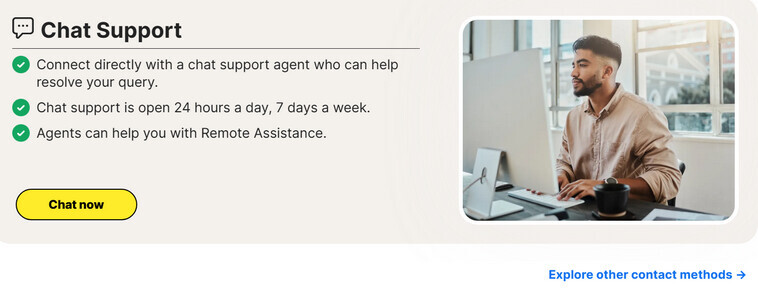
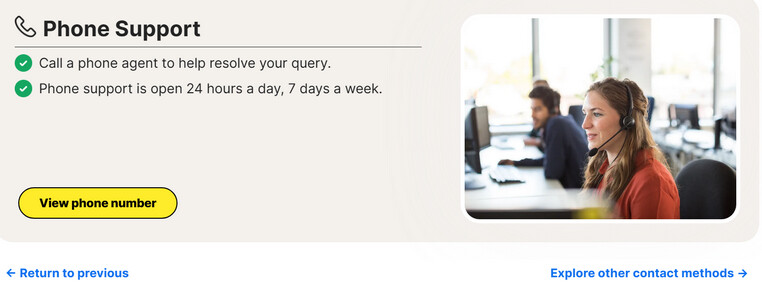
Contact Norton Support - Chat | Phone Support (related notes here)

-----------------------------------------------------------

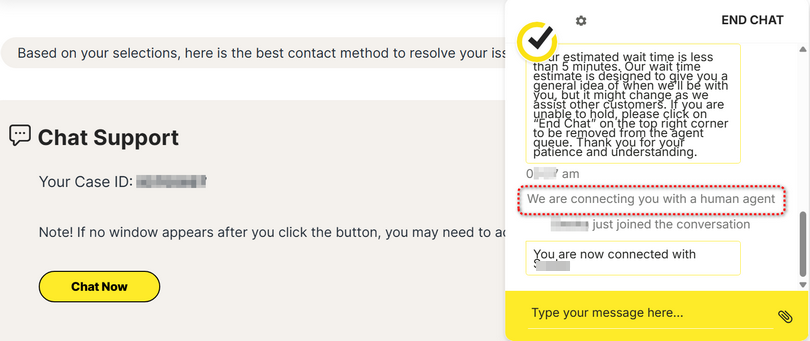
Please step thru Norton Support here to reach Norton Chat agent.

  1. Verify registered email address with one-time passcode sent to your email account.
  2. AI agent “How can I help you today?”
  3. Type your message
  4. AI agent offers preset solutions.
  5. AI agent “Do you need assistance with anything else?”
  6. Type your message
  7. AI agent “How may I be of assistance to you today?”
  8. Type your message
  9. AI agent “In a few words, could you let me know how I can help you today?”
  • type “agent” three times to reach a human agent

-------------------------------------------------------------------

Explore other contact methods →

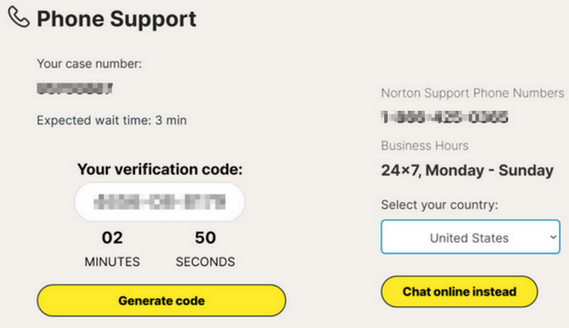
View phone number → Select your country:

  1. AI agent requests verification code:
  2. AI agent authenticates you.
  3. AI agent “How may I help you today?”.
  4. AI agent offers preset solutions.
  • speak “agent” three times to reach a human agent

-----------------------------------------------------

Contact Norton Support - Chat | Phone (related notes here)

-----------------------------------------------------

Please confirm you’re allowing Norton pages content in order to provide the best experience possible.
Please confirm you’re allowing Norton ads, cookies, trackers, analytics, scripts, beacons, etc., etc.,
Please whitelist norton.com, login.norton.com, my.norton.com, nortonlifelock.com, support.norton.com, buy.norton.com, renew.norton.com
Please disable VPN…Ads blocker…try from Chrome.

Please see us.norton.com General Privacy Notice and Cookie Statement for additional information.

=============================

Norton Social Media → Message
If you cannot reach official Norton support via chat/phone, Norton’s social media teams may be more responsive than the automated support website:

  • X (Twitter): official Norton page @X/NortonSupport → Message
  • Facebook: official Norton page @facebook/Norton → Message
  • Benefit: A human usually responds to DMs within an hour and can initiate the refund process for you without you having to click through tiles.

When you log into your Norton Account do you see your subscription when you click My Account icon at the top right then click on My Subscriptions? If not, did you purchase your Norton apps from the mobile app store for your device?

1 Like

I have accessed my account on Win 11 desktop. I did not purchase it from the mobile app. On my desktop, I can go to my account and see my product key, the number of devices covered, what is included, and the expiration date that is still about 4 months out. ll seems fine.

I don’t have any social media accounts to use as access.

When I try the support links, it recognizes my account, but says:

Mike

Hello @M470
Curious, what occurs with continue?

This error typically occurs when there is a mismatch between the account you are signed into and the account where your Norton subscription is actually registered. It can also happen if your browser’s cached data is causing a sign-in loop.

Common Fixes

  • Sign Out and Back In: On Windows or Mac, open Norton and select Sign Out. Close the app, reopen it, and sign back in using the email address you used for the purchase.
  • Clear Browser Cache: If you are trying to access support online, clear your browser’s cookies and cache. This often resolves “No active subscription” messages that appear during the sign-in process.
  • Check Different Email Accounts: If you have multiple email addresses, try signing in with others . Your subscription may be linked to an older or alternative account you used previously .
  • Verify Status on Mobile: If you purchased through an app store, check your subscription status in the Google Play Store or Apple App Store to ensure it is active there.

Contacting Support Without a Visible Subscription
If you cannot bypass the error to reach support, you can use these direct channels that do not always require a pre-verified active subscription for initial contact:

  • Official Support Website: Start the process at the Norton Support Contact Page. If prompted, you may need to enter “agent” multiple times in the chat window to reach a human.
  • Phone Support (USA): You can call official Norton Member Services at 1-800-745-6061 or 1-800-745-6034 .
  • Alternative Support Line: Some members have also successfully used 844-488-4540 for issues with billing and account access.

Warning: Be cautious when searching for phone numbers online. Some numbers found in search results may be associated with scammers who ask for bank login details or remote access to your computer.

=============================================

Live Chat and Phone Support typically require a 10-digit validation code to securely verify your identity. However, since you cannot generate one due to the subscription error, you can use these alternative methods that don’t always require a pre-generated code for initial contact:

Ways to Bypass the Validation Code

  • Live Chat “Agent” Trick: You can often reach a chat agent without a code . Go to the Norton Support Contact Page and type “agent” into the chat window three times to bypass the automated system and reach a human.
  • Social Media Support: Verified Norton support via social media platforms (like X/Twitter or Facebook) generally does not require a validation code for initial inquiries.
  • Manual Verification: If you call and do not have a code, an agent may confirm your identity by sending a 6-digit code directly to your registered email or phone while you are on the line.

Official Contact Information
If you choose to call, use these official numbers for the United States:

  • Member Services: 1-800-745-6061
  • Alternate Line: 1-800-745-6034
  • Billing/Cancellation: 844-488-4540

Important Security Note: A legitimate Norton agent will never ask for your account password or bank login details over the phone . Be wary of any site claiming to provide support codes that asks for payment or remote access before you speak to an official representative.

=============================================

You do not strictly need to sign in to your Norton account to start a phone call or chat session, especially if you are facing account access issues. While Norton’s official support page typically asks for an email verification or sign-in to generate a validation code, there are ways to bypass this:

How to Contact Support Without Signing In

  • For Live Chat: Visit the Norton Support Contact Page. When the automated assistant appears, type “agent” multiple times . This usually bypasses the login requirement and connects you to a human who can verify your account manually via a code sent to your registered email .
  • For Phone Support: You can call their official lines directly. While the automated system may ask for a code, staying on the line or indicating you don’t have one will often eventually route you to an agent .
  • Social Media: Contacting Norton through their verified social media accounts (like X/Twitter or Facebook) does not require a pre-generated validation code for initial contact.

Direct Official Phone Numbers
If you are unable to generate a code, you can try these verified numbers for the United States:

  • Member Services: 1-800-745-6061 or 1-800-745-6034
  • Billing and Cancellations: 844-488-4540

Important: If you’re calling because you can’t sign in, have your registered email address and order confirmation number (if available) ready so the agent can verify your identity manually.

=============================================

Contact Norton Support → Let’s get started.
Did you try Continue as Guest

AI sourced content may make mistakes

Hello @M470
Curious, what occurs with continue?
Care to share your progress

I spent an hour chatting with Norton help after finally clicking the right thing to get to a chat window. Got to a live person (I think) after about 15 min who finally put me on the right path. With limited testing so far (only a few hours) it looks like it now works.

Turns out that the “Auto Connect” in the VPN settings menu has either changed its functionality in the recent update or I never dug into it far enough. It says it will not turn on for trusted networks, and I thought that meant that it would decide what is or is not trusted. Not so. Click on auto connect and turn it on for Unsecured Wi-Fi. Then you can access the “Trusted networks” setting. It keeps a list of trusted networks that you add and doesn’t connect when you are on one of those. I have not added any trusted networks, so auto connect now turns the VPN on all the time, exactly how I want it. Not sure if you can remove a network that you previously selected as trusted, haven’t looked into that.

Mike

1 Like

Hello @M470
Norton’s Auto Connect is designed to be “smart,” meaning it normally turns itself off on networks you’ve labeled as safe to save battery and data. By having an empty Trusted networks list, you are essentially telling Norton that every network is potentially risky, forcing the VPN to stay active.

To ensure it stays on “All the time”:

  1. Empty that list: Use Clear Data to ensure no “ghost” networks are accidentally white-listed.
  2. Set Auto-connect to “Always”: In that same Auto Connect menu where you saw the trusted networks, make sure the main toggle is ON and set to trigger for “Unsecured WiFi”
  3. Check Battery Optimization: Android loves to “sleep” apps that run in the background. To keep the VPN from dropping, go to your phone’s Settings > Apps > Norton 360 > Battery and set it to “Unrestricted.”

Since you want it on 24/7, enable the Kill Switch in the Norton VPN settings to block internet access if the VPN connection ever drops.

Clear Data removes everything including your login info, personalized settings, and the database where “Trusted Networks” are stored, essentially resetting the app to a “clean slate”.

===========================================

On Android, Norton 360 recognizes a Trusted Network by running a suite of automated security scans every time you connect to a Wi-Fi network. If a network passes these checks without flagging any risks, it is considered secure.

  • Automated Scanning: When you connect, Norton checks for specific threats like SSL Stripping, ARP Spoofing, and DNS Spoofing. It also evaluates the network’s encryption strength and password protection.
  • Location Permissions: For the app to identify and “remember” specific networks, you must grant it “Allow all the time” location permissions in your Android settings. Without this, Norton may treat your home Wi-Fi as a “New Network” every time you connect.
  • Suspicious Network Alerts: If the app detects behavior similar to a Man-in-the-Middle (MITM) attack on a network you know is safe, you can tap “Trust” directly in the alert. This prevents future notifications for that specific network.

Configure VPN settings in Norton 360 app on your mobile device
View and respond to Wi-Fi Security Alerts in Norton 360 app on your mobile device

AI sourced content may make mistakes