Ich habe ein Backup auf externer Festplatte gemacht. Es wurde auch angezeigt, das es erfogt ist. Nach dem nächster Start kam die Fehlermeldung. Kein Back vorhanden. Es scheint so, als wären die Daten gespeichert worden, die Daten werden aber nicht gefunden. Wer kann mir helfen?
and you’re Sign’d In at Norton 360 Home?
and your ext drive is plugged in & powered?
Es handelt sich um Norton 360 gebucht über Telekom/T-Mobile. Das externe Laufwerk ist angeschlossen.
and your ext drive was plug’d in and power’d up?
and you tried re-plugging in your ext drive?
and your ext drive was recognized?
does your ext drive have a separate power supply?
fwiw ~
I’m imagining since my ext drive is not always plug’d in…not always recognized. Upon plug in. Norton 360 needs time to call from N360_ BACKUP…folder and time to render/populate Local backups data & time to run scheduled task… Automatically sync.
Note: my Local backups → Automatically sync = off.
I’m imagining with Local backups → Automatically sync = on. Automatically sync task has priority upon ext drive plug in and render/populate Local backups data from N360_BACKUP folder may take time.
I’m imagining data moving between ext drive…where my Local backup data is stored & my int drive where Local backup data is displayed may take time. Time may vary depending on whether data is moving between HDDorSSD & SSDorHDD.
Were you able to find your Local backups after time or after cycling Norton tabs &or cycling Norton 360 user interface. Maybe, after re-plugging in your ext drive. Maybe, after your ext drive is recognized.
==================================
AI Overview
When you plug in an external drive, it typically becomes recognized by your computer as a new storage device, often assigned a drive letter. The drive’s contents become accessible, and you can transfer files to and from it as you would with any other storage drive.
Power and Connection:
The external drive receives power, either through the USB connection or a separate power adapter, and establishes a data connection with the computer.
Drive Recognition:
The operating system detects the new device and assigns it a drive letter (e.g., E:, F:).
AutoPlay (Optional):
In Windows, an AutoPlay window might appear, offering options like opening the drive or scanning it for viruses.
File Transfer:
You can now copy files to and from the external drive using standard methods like copy and paste, or drag and drop.
Software Installation (Generally Avoided):
While you can transfer software to an external drive, it’s generally not recommended as it can cause issues with the registry and software stability when the drive is disconnected.
Eject/Safely Remove:
It’s crucial to safely remove the drive before physically disconnecting it from the computer to ensure all data is written to the drive and prevent potential data loss or corruption.
AI responses may include mistakes.
==============================================
Maybe, think of Norton Cloud Backup as supplement to your primary/secondary backup solutions.
The 3-2-1 Backup Rule
- You should have three copies of your data at all times — one original, and two backups.
- Both backups should be on different storage mediums.
- One backup should be stored offsite.
==========================================
Hasleo Backup Suite Free here
Hasleo Backup Suite wilderssecurity.com discussion here
Haselo Backup Suite malwaretips.com discussion here
========================================
AI Overview
Several free cloud backup solutions offer varying amounts of storage and features. For example, Google Drive provides 15GB, while MEGA offers 20GB (expandable to 30GB). Other options include OneDrive, Dropbox, and iCloud, each with their own free storage tiers and features. Some providers, like CBackup, offer tools to manage and combine multiple cloud storage accounts.
Google Drive
Offers 15GB of free storage, shared across Google Drive, Gmail, and Google Photos, according to a review on UKWebHostReview.com. Known for its collaboration tools (Google Docs, Sheets, Slides).
MEGA
Provides 20GB of free storage, with the potential to earn up to 30GB through achievements. Offers strong encryption and file-sharing capabilities, according to a review on EXPERTE.com.
OneDrive
Part of the Microsoft ecosystem, OneDrive offers free storage (amount varies, but typically 5GB). Integrates well with other Microsoft products.
Dropbox
A well-known cloud storage provider that also offers a free tier (typically 2GB). Known for its user-friendly interface and file-sharing features.
pCloud
Offers a free tier (amount may vary, but often 10GB) and optional paid plans for larger storage needs, according to a review on EXPERTE.com.
Icedrive
Another option with a free tier and paid plans. Offers features like zero-knowledge encryption, according to a review on EXPERTE.com.
Storage Needs: Assess how much space you need for your files. Some services offer more free storage than others.
Features: Consider what features are important to you, such as collaboration tools, encryption, file sharing, or integration with other apps.
Privacy and Security: Review the privacy policies and security measures of each provider.
Ease of Use: Choose a service that is user-friendly and easy to navigate.
Combine accounts:
If you need more than the free storage offered by one provider, you can create multiple accounts with different providers and use tools like CBackup to manage them.
Consider paid plans:
If your storage needs grow, you can always upgrade to a paid plan with more storage space.
By carefully evaluating your needs and comparing the different options, you can find the best free cloud backup solution for you, according to Zapier.
AI responses may include mistakes.
Caveat: Norton Cloud Backup is not my daily rider.
Hallo, ich habe das exakt gleiche Problem. Nachdem die Back-Up-Sätze nicht mehr angezeigt wurden in neuer App Version habe ich alles nochmal neu von Grundauf lokal gesichert. Damit ich überhaupt in die richtige Oberfläche kam, was teils 30 Minuten bis zu Stunden gedauert hat, kostete es mich schon Monate, dort überhaupt Sicherungren anlegen zu können. Diese waren dann letztlich bestätigt und endlich gesichert. Nach ein paar Tagen und Neustart des PCs/Programms und wie immer sehr langen Wartezeiten im Programm wurden die Sätze nicht mehr angezeigt. Sie wurden vorab ja gesichert & bestätigt und sind auch nach wie vor auf der Festplatte. Alles ist korrekt angeschlossen etc., nur die Norton App sieht plötzlich die Datensätze nicht mehr, und kann auch keine neuen Sätze speichern. Was ist hier los? Der Service war immer sehr zuverlässig, seit der Cloud Speicher so deutlich forciert wird, damit der Nutzer möglichst nichts lokal speichert, scheint diese Funktion fast schon willentlich boykottiert zu werden.
1 Like
Har du husket at ha den nye version af norton 360 25.8 det vil fix meget
Hello @RLH
and your ext drive is plugged in and powered up?
and you tried re-plugging in your ext drive?
and your ext drive is recognized?
does your ext drive have a separate power supply?
~ fwiw ~ as test:
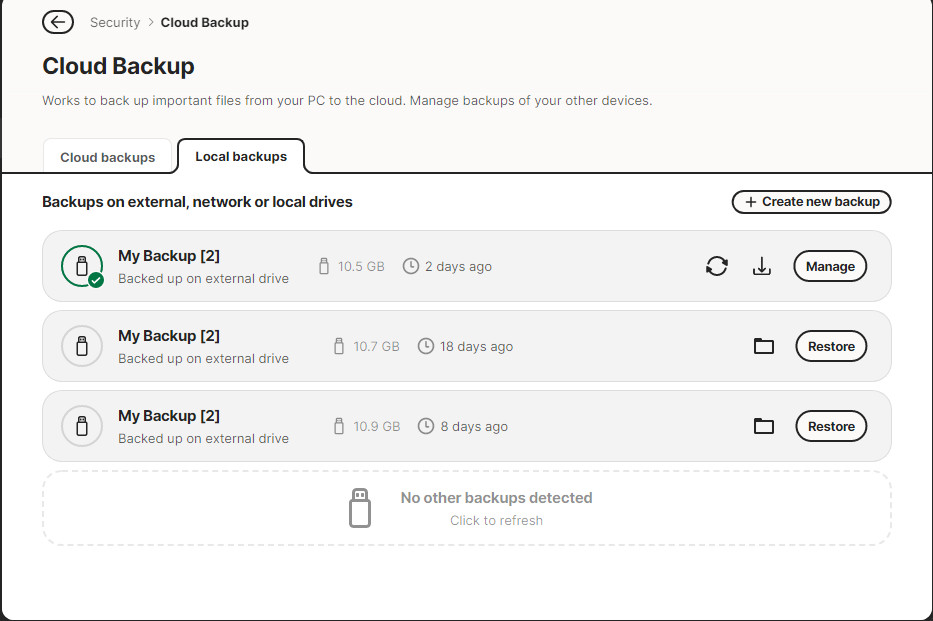
Caveat: I run Automatically sync = off