Deleting Specific Files or Folders from a Backup Set (Windows)
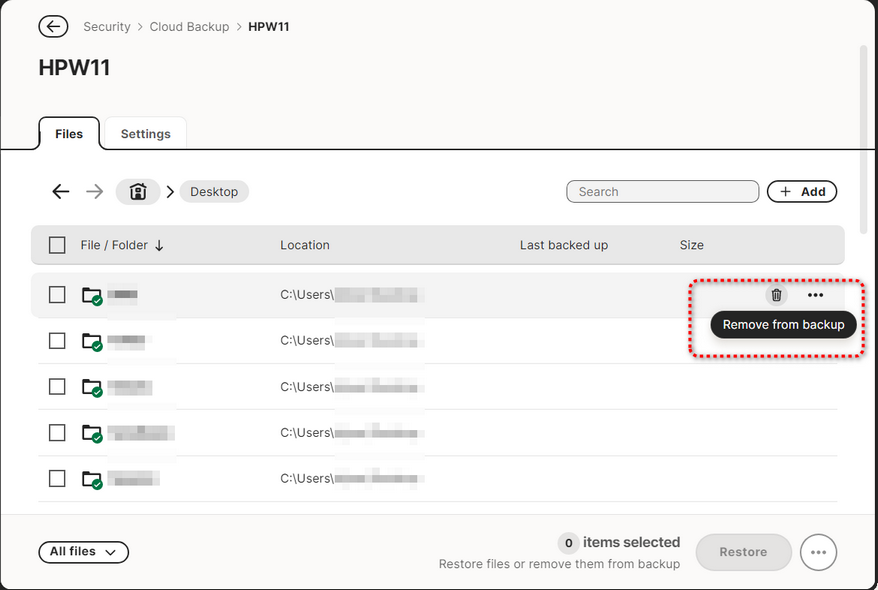
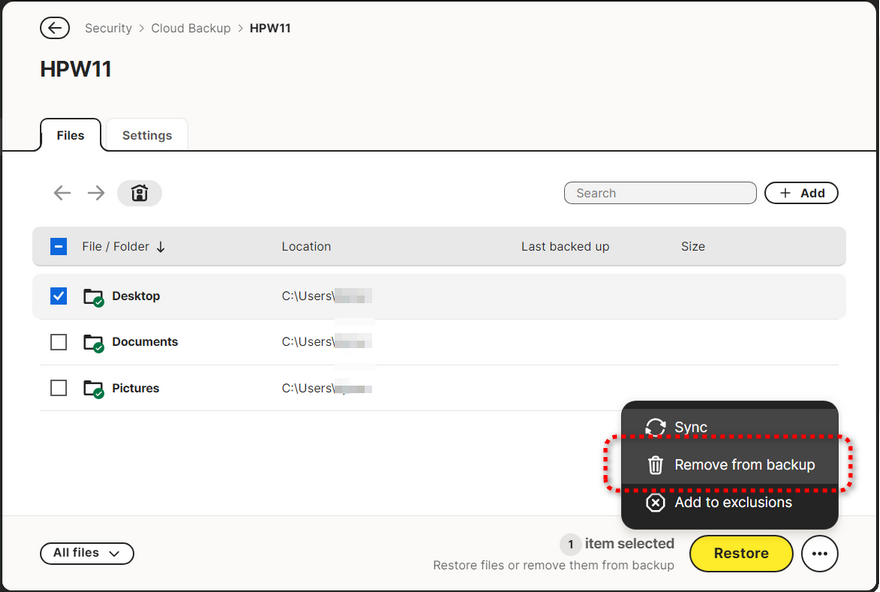
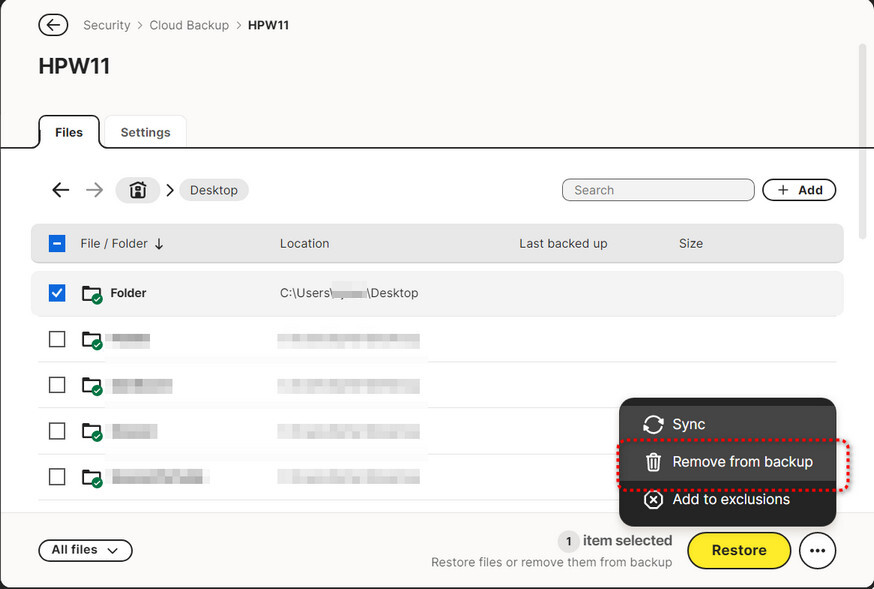
To remove individual files or folders from your Cloud Backup, open your Norton device security product and navigate to the “Security” section. From there, click “Open” or “Manage” on the “Cloud Backup” tile. Select “Cloud Backup” as your backup location, then click “Manage” or “Manage Files” next to the specific backup set you wish to modify.
I don’t see where to do this? where is it located or how do I get to it?
Issue abstract:
Detailed description:
Product & version number:
OS details:
What is the error message you are seeing?
If you have any supporting screenshots, please add them: